
Resetting a user's MFA details - ENTRA
Resetting a user's MFA details requires the user to re-register at next log-on. Proceed as follows.
- Go to https://entra.microsoft.com/ , and sign into using an account with administrative privileges.
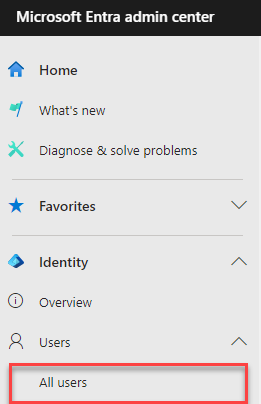
From the left-hand menu, under Identity select All Users.
A list of All users appears.
- Search the list for, and click on, the desired user.
The selected user's Profile page appears.
-
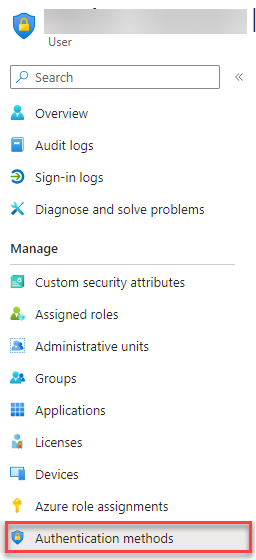
On the left-hand menu panel, under Manage, click Authentication methods.
An option bar appears at the top of your screen.
-
Click Require re-register MFA.

Note:
If the user's device has been lost or stolen, then also click Revoke MFA sessions.
This resets the user's MFA details, and they must now re-register their MFA methods upon their next sign-in.
Coffee's on us!
Our 💟 for great ☕is second only to our dedication to delivering strategies that drive your business forward.
Let’s discuss how our solutions can fuel your success.


Head Office
Level 7, 12 St Georges Tce
Perth WA 6000
Contact Info
[email protected]
Ph 1300 NOVATA
Quick Links
ISO 27001
ISO 9001
SMB 9001 Gold

In the spirit of reconciliation Novata Solutions acknowledges the Traditional Custodians of country throughout Australia and their connections to land, sea and community. We pay our respect to their Elders past and present and extend that respect to all Aboriginal and Torres Strait Islander peoples today. This land always was, and always will be Aboriginal Land.

Novata Solutions is committed to embracing diversity and eliminating all forms of discrimination through education. We welcomes all people and is respectful of individual identities.